Programming
From TIKI-BASIC in the classroom to new games written in C and Z80 assembly today.
Programming languages
Programming was a big part of why the TIKI 100 was in schools. Pupils learned BASIC, COMAL and LOGO on it, and because the operating system was compatible with CP/M 2.2, a large library of professional languages and tools was available too.
TIKI-BASIC
Tiki-Data's own BASIC (also known as KONTIKI BASIC) was the main language of the machine. The company advertised it in 1984 as an improved version of standard BASIC: easy to learn, but powerful, designed for structured programming and with access to the TIKI's colour graphics. It was the language used in NRK's TV course DATA-START, with its own workbook, Datastart: maskinarbeidsbok – Tiki-BASIC på TIKI-100 (1984).
COMAL
COMAL, a structured BASIC-like language from Denmark, was popular in Nordic schools. On the TIKI it came as COMAL-BASIC on the school software disk KUD 1.
LOGO

LOGO and its turtle graphics were made for teaching, and many pupils drew their first houses and spirals this way. The TIKI had LOGO1 on the KUD 1 disk and a version of Digital Research's Dr. Logo. The book Norsk Logo (Boris Allan, 1985) covered both the Commodore 64 and the TIKI-100.
Pascal
Borland's Turbo Pascal (version 3.10A, adapted for the TIKI) was the serious choice for structured programming. It worked with LIBG, the graphics library by Egil Kvaleberg (1984), and later with the DS_GBIB graphics library and a mouse and sound module. LIBG also supported T-Pascal. The book Lær Turbo Pascal på Tiki 100 (Hugo Mossestad) came as late as 1992.
C and assembly
The technical handbook describes LIBG for the AC80 C compiler, and Z80 machine code could be written with Microsoft's M80 assembler and L80 linker – the handbook's own examples use them. The hardware details for low-level programming are on the Technical info page.
Everything CP/M
Since TIKO is compatible with CP/M 2.2, standard CP/M software runs on it – for example dBASE II, a database with its own programming language. With the 8/16 upgrade, the machine could also run MS-DOS 2.11 and DOS tools.
| Language / tool | Type | Notes |
|---|---|---|
| TIKI-BASIC (KONTIKI BASIC) | Interpreter | Tiki-Data's own BASIC – disk image |
| COMAL-BASIC | Interpreter | On the KUD 1 school disk |
| LOGO1 | Interpreter | On the KUD 1 school disk |
| Dr. Logo | Interpreter | Digital Research, beta version for the TIKI – disk image |
| Turbo Pascal 3.10A | Compiler | Borland, adapted for the TIKI – disk image |
| T-Pascal | Compiler | Supported by LIBG |
| AC80 | C compiler | Supported by LIBG |
| M80 / L80 | Assembler / linker | Microsoft MACRO-80 for Z80 machine code |
| LIBG, DS_GBIB | Graphics libraries | For Pascal and C |
| dBASE II | Database language | Standard CP/M software |
Many more programs and disk images are in Asbjørn Djupdal's software archive. Books about programming the TIKI are listed on the Documentation page.
How to program it today
You don't need a working TIKI 100 to write new software for it. A modern PC, a free cross-compiler and an emulator are enough – and the result runs on the real machine too.
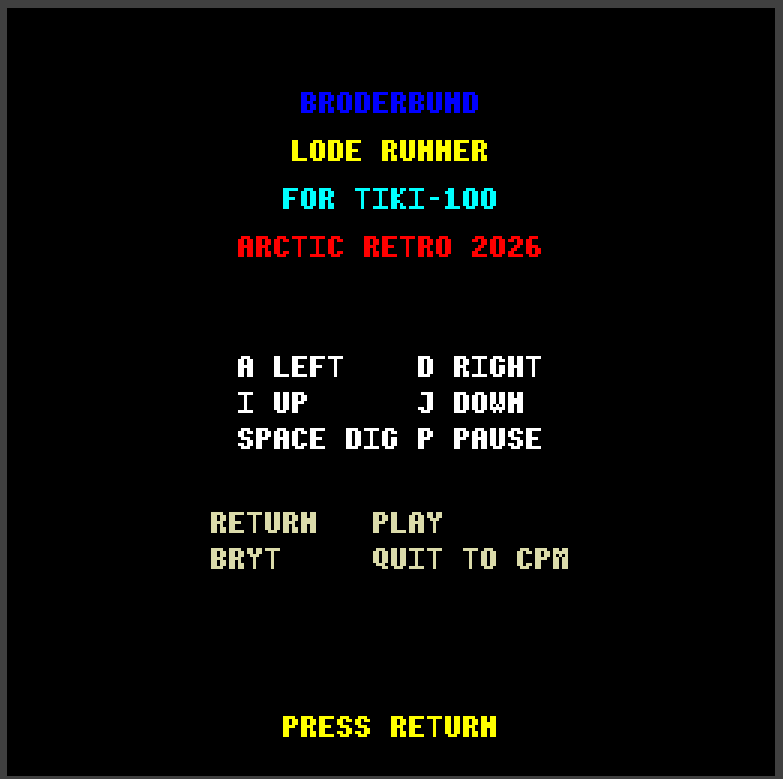
This guide is based on two of my own projects, ports of Lode Runner and Jet Set Willy. Both are written in a mix of C and Z80 assembly, and the full source code is on GitHub. The code examples below are taken from them.
The workflow:
- Write C and Z80 assembly on the PC.
- Compile with z88dk into a CP/M program (
.COM). - Put the program on a TIKI disk image (
.dsk). - Run it in an emulator.
- Copy the disk image to a Gotek or a real floppy and run it on the TIKI.
Tools and building
z88dk is a free
C compiler and assembler for Z80 computers, and it knows the TIKI 100: it has a CP/M target with a
tiki100 subtype and a library (arch/tiki100.h) with functions such as
gr_defmod() for the graphics mode and gr_setpalette() for the palette.
Install it (for example to C:\z88dk), put its bin folder on the
PATH, and set ZCCCFG to <z88dk>\lib\config.
One command builds the program and a disk image:
zcc +cpm -subtype=tiki100_400k -startup=0 -clib=default -compiler=sccz80 ^
    -Cz--container=raw -o build\mygame main.c video.c screen.asm ^
-create-app -m -s| Option | Meaning |
|---|---|
+cpm | Build a CP/M program, which TIKO runs |
-subtype=tiki100_400k | TIKI 100 with 400 KB disk format; also links the TIKI library |
-startup=0 | Minimal C start-up code |
-compiler=sccz80 | The forgiving classic compiler (sdcc optimises better) |
-create-app + -Cz--container=raw | Also write a raw disk image (.img, rename to .dsk) |
-m -s | Write a map file and a symbol file – invaluable for debugging |
A program has the usual shape – set the machine up, run, and put it back the way it was before returning to CP/M:
#include <arch/tiki100.h>

int main(void)
{
    vid_init();       /* gr_defmod(3) + gr_setpalette()      */
    input_init();
    snd_init();

    game_loop();

    snd_off();
    vid_shutdown();   /* gr_defmod(1): back to the text screen */
    return 0;         /* back to CP/M                          */
}
A practical split that works well: the game logic in C, and everything that touches the hardware
or must be fast in assembly. C passes arguments to the assembly routines through a small block of
global variables (gfx_x1, gfx_y1, gfx_colour …) and then
calls the routine.
The screen and VRAM banking
Both games use graphics mode 3: 256 × 256 pixels in 16 colours. Each pixel is 4 bits, so one byte holds two pixels, a line is 128 bytes and the screen fills all 32 KB of video memory.
address = 128 * y + (x >> 1)
low nibble  (bits 3–0) = left pixel  (even x)
high nibble (bits 7–4) = right pixel (odd x)
The 16 colours come from the palette. Each entry is a RRRGGGBB byte, set with
gr_setpalette(16, palette) – which inverts the values for the hardware itself, so give it
normal intensities.


The central constraint: banking
The Z80 can only address 64 KB, and the video memory is half of that. To draw, the program switches
the 32 KB of video RAM in over addresses $0000–$7FFF through the
system register (port $1C, bit 3). While it is switched in, the whole lower half of
memory is gone – including your program code, its stack and any data stored there. So:
- Drawing routines, and every variable and buffer they use, must live above
$8000. In z88dk, put them in the sectionscode_graphicsandbss_graphics; the start-up code moves them up there. - No C library, CP/M, disk, keyboard or sound calls while VRAM is switched in.
- Keep the switched-in window short. Lode Runner draws in two steps: first it builds the finished pixels in a small buffer in high memory, then it switches VRAM in just long enough to copy them.
z88dk's swapgfxbk and swapgfxbk1 switch the video RAM in and out. Clearing the screen
then looks like this:
    SECTION code_graphics      ; above $8000 - still visible while banked

_vid_clear_asm:
    call    swapgfxbk          ; video RAM in at $0000-$7FFF
    ld      hl, 0
    ld      de, 1
    ld      bc, 32767
    ld      (hl), 0
    ldir                       ; fill all 32 KB with colour 0
    call    swapgfxbk1         ; normal RAM back
    ret
Jet Set Willy takes another approach: the game draws into a Spectrum-style buffer in high memory, and a blit routine converts it to the TIKI format. It only writes the 8×8 cells that changed since the last frame, and switches VRAM in only once per frame.
Memory layout
CP/M loads the .COM file at $0100. The graphics section rides along at the end of the
file and is moved up to its own address (CRT_ORG_GRAPHICS) when the program starts. Two things
must not collide: the loaded program, and the graphics section with the stack above it.
In Lode Runner, the default stack sat inside the graphics section while it was still at the end of the
loaded file. The start-up code pushed return addresses over it and then copied the damaged bytes up –
leaving a few corrupted instructions that showed up as a black playing field or sprites in the wrong place,
depending on the program size. The fix was to move the stack with
-pragma-define:REGISTER_SP=0xCBFE into the CCP area, which is unused while the game runs and
restored when it exits. The build script now calculates the graphics address and refuses to build if
anything overlaps.
Keyboard, sound and timing
Reading the keyboard
For games, read the keyboard matrix directly instead of going through CP/M. Write anything to port
$00 to reset the column counter; each following read returns the next column. A bit that is
0 means the key is pressed.
    out     ($00), a        ; reset scan to column 1
    in      a, ($00)        ; column 1: BRYT, RETUR, space ...
    bit     3, a
    jr      nz, no_return   ; bit 3 = 0 -> RETUR is pressed
    ...
    in      a, ($00)        ; column 2: A ...
    bit     3, a
    jr      nz, no_left     ; bit 3 = 0 -> A is pressed
Lode Runner reads the whole matrix once per frame and decodes all keys from that snapshot, so one frame never sees two different keyboard states.
Sound with the AY-3-8912
Write the register number to port $16 and the value to port $17, with interrupts off
so the pair is not split. Two rules matter on the TIKI:
- Never write register 14. It is the chip's I/O port, and on the TIKI it drives the
hardware scroll – writing it moves the whole picture. z88dk's
psg_init()clears every register, so don't use it. - Keep bit 6 of register 7 set (write
$7Eor$7F), so the I/O port stays an output.
ay_set:                     ; A = register, E = value
    di
    out     ($16), a        ; select register
    ld      a, e
    out     ($17), a        ; write value
    ei
    ret
The chip runs at 2 MHz, so a tone of f Hz needs the period 2,000,000 / (16 × f).
In Jet Set Willy, out (c),a to the sound ports crashed the emulator used at the time, so both games use
out (n),a.
Timing
There is no simple “new frame” interrupt to hook into. Both games patch a firmware callback, but it is really a cursor-blink timer at around 5 Hz, so they wait with a short timeout instead. The proper solution is a timer on one of the Z80 CTC channels – that is still on the to-do list.
Getting it onto a disk
To run the program it has to be on a TIKI disk image. Both projects start from a bootable TIKO disk
(workbase.dsk) and add the new .COM file to its CP/M directory with a small PowerShell
script – no other disk tools needed. Other ways:
- The Arctic Retro emulator has an Add file button in its disk viewer that writes any PC file into a disk image.
- Start automatically: the TIKO system disk runs
MENY.COMat start-up. Save your program under that name and the disk boots straight into it.
TIKI disk images come in four sizes: 90, 200, 400 and 800 KB. The emulators read them as raw sector images. On a real machine, put the image on a USB stick for a Gotek floppy emulator, or boot from the Gotek and copy it to a real 5.25″ floppy with the TIKI program RÅKOPI.
Example projects
Lode Runner
Game logic in C, drawing, keyboard and sound in assembly. 50 rooms, build and deploy scripts for both emulators, automated tests that run on the emulated Z80 under MAME, and detailed notes on how it works.
Jet Set Willy
The game engine ported from the ZX Spectrum assembly into Z80 assembly, with C for set-up. Shows the buffer-and-blit approach, music on the AY chip and a fast changed-cells-only screen update.
Emulators
An emulator is the quickest way to try the TIKI 100 – and while developing, it saves a lot of time. There are three to choose from:
| Arctic Retro TIKI-100 Emulator | MAME | RetroCoreLabs TIKI-100 | |
|---|---|---|---|
| Runs on | Windows | Windows, macOS, Linux | Web browser; Windows, macOS, Linux, Raspberry Pi |
| Sound | Yes (basic) | Yes (accurate) | See its documentation |
| Best for | Quick start, playing, debugging | Accuracy, sound, automated testing | Trying it with nothing to install |
| Disk formats | 90, 200, 400 and 800 KB | 400 KB only | See its documentation |
Arctic Retro TIKI-100 Emulator

My updated version of Asbjørn Djupdal's original emulator from 2000–2001. It emulates the Z80, all three graphics modes, the floppy and hard disk controllers, the counter/timer and the serial port. The original emulator had no sound at all; this version adds AY-3-8912 sound, though not as accurately as MAME.
- Download it from GitHub
(
tikiemul.exeandtiki.romare in thebinfolder). - Keep
tiki.romin the same folder astikiemul.exe. - Start the emulator and load
tiko_kjerne_v4.01.dskinto drive A: from the Disk drive menu (or drag the file onto the window), then reset. Put application disks in drive B:.
Disks can also be given on the command line, which is handy from build scripts:
tikiemul.exe -diska work.dsk [-diskb games.dsk] [-hd0 hd.dsk] [-console]Useful when developing:
- Z80 window – live registers, flags and a CPU load graph.
- Memory viewer – view, search and edit memory, and halt or continue the CPU.
- Disk viewer – the CP/M directory of each disk, with Add file to copy a PC file onto it.
- Untick “Limit speed” to run at full speed, for example while loading.
- Sleep (Emulator menu) saves the whole machine and resumes exactly there next time.
- F10 frame rate, F11 screenshot to the clipboard, F12 fullscreen.
MAME
MAME has a tiki100 driver that
emulates the timer, the interrupt chain and the AY-3-8912 accurately, so it is the one to use for sound and timing.
It can also be fully controlled from Lua scripts, which Lode Runner uses for automated tests.
- Install MAME. On Windows:
winget install MAMEdev.MAME. (Version 0.287 works; 0.289 failed to start on one of my machines.) - MAME needs a ROM set in a folder named
tiki100: the firmwaretikirom-2.03w.u10– the same 8 KB file astiki.rom– and the 256-byte address-decode PROM53ls140.u4. If you don't have the PROM, Lode Runner'stools/make-mame-romset.pyrebuilds one from the decode logic. It works, but MAME then shows a red “wrong checksum” warning that you dismiss with RETURN. - Start it with a 400 KB disk image:
mame tiki100 -rompath roms -flop1 work.dsk -slot1 "" -slot2 "" -window-slot1 "" -slot2 ""removes the 8088 and hard disk cards, which need ROMs of their own.- ESC on the PC keyboard is BRYT.
-wavwrite sound.wavrecords the sound,-autoboot_scriptruns a Lua script, and-seconds_to_runskips the start-up screens in scripted runs.
RetroCoreLabs TIKI-100 emulator
A cross-platform emulator by Ronny Hansen, also based on Djupdal's emulator. It runs directly in the web browser – the easiest way to try a TIKI 100, see Try a TIKI in your browser – and as a desktop program for Windows, macOS, Linux and Raspberry Pi. Its built-in disk catalogue has over 70 TIKI disks. Source code and documentation are on GitHub.
Where to get disks
You need a TIKO system disk to boot. tiko_kjerne_v4.01.dsk comes with the Arctic Retro emulator,
and many more disk images are in Djupdal's
software archive. See also the Software page.